The tiny tweak that changed how I use Android Auto in my cars


For years, I treated Android Auto as a simple mirror for my phone. It was a way to see Google Maps and YouTube Music on a bigger screen.
Still, despite the convenience, I found myself distracted by multi-tap menus and struggling with voice commands while the A/C was blasting or the little one was crying.
That all changed when I discovered a hidden customization buried in the settings: the ability to add one-tap shortcuts for specific contacts and Google Assistant actions directly to the app launcher.
With this trick, I have eliminated the friction of driving and finally made the interface work for me.

Solving the voice assistant struggle
My relationship with Google Assistant in the car has always been a bit rocky.
In theory, voice commands are the gold standard for hands-free driving, but the reality is rarely that smooth and works as expected in a quiet cabin.
I can’t tell you how many times I have sat in frustrated silence and waited for that familiar bloop to signal the car is listening, only for the road noise or the hum of the A/C to turn my simple request into a “I’m sorry, I didn’t catch that.”
I found myself repeating “Call Heema” three times, each time getting louder and more annoyed, which is the exact opposite of the calm, focused environment I want while driving.
Even when it does work, voice commands are slow. You have to trigger the wake word, state the command, wait for the processing lag, and often confirm a follow-up question.
Google is aggressively replacing Google Assistant with Gemini, but that transition has yet to take place on Android Auto.
By adding a direct shortcut to my launcher, I have effectively bypassed that entire clunky conversation.
Now, instead of a 10-second verbal negotiation with an AI that might not be accurate, I just glance at the screen and give a single, intentional tap.
It’s faster, it’s 100% reliable regardless of how loud my music is, and most importantly, it lets me get back to focusing on the road ahead rather than debating with my dashboard.
Finding the hidden menu
For the longest time, I assumed that what I saw on my car’s head unit was all I got.
I would spend plenty of time poking around the settings on the dashboard screen, but that’s actually a trap: the real power user controls aren’t in the car at all.
To unlock this, I had to pull over and pick up my phone.
The secret is buried in the Android Auto app settings on your device. After you are in the Android Auto menu, look for the Customize Launcher under the Display menu. There are two options now.
- Call contact: This lets you pick anyone from your address book. It creates a dedicated icon with their name and photo right on your car’s screen.
- An Assistant action: This is where the magic happens. It asks you what the Assistant command should be. I typed things exactly as I would say them. You then give the icon a label — keep it short so it doesn’t get cut off on the screen — and tap Save.
The final step for me was the cleanup. While still in the Customize Launcher menu, I dragged my new shortcuts all the way to the top of the list.
Since Android Auto prioritizes the first few apps in your drawer, this ensured that the moment I plugged my phone into the car, my custom buttons were staring right at me on the first page.
Creative use cases
I started with my contacts. I added a shortcut for my wife and another for my business partner.
It’s a dedicated speed dial that feels like it belongs in the car — one tap, and the call is dialing before I pull out of the parking lot.
I have also added a custom assistant action.
I have always found it tedious to manually start my Home navigation and then dictate a text to my wife to let her know I’m leaving. It’s a lot of interaction for a routine I do every single day.
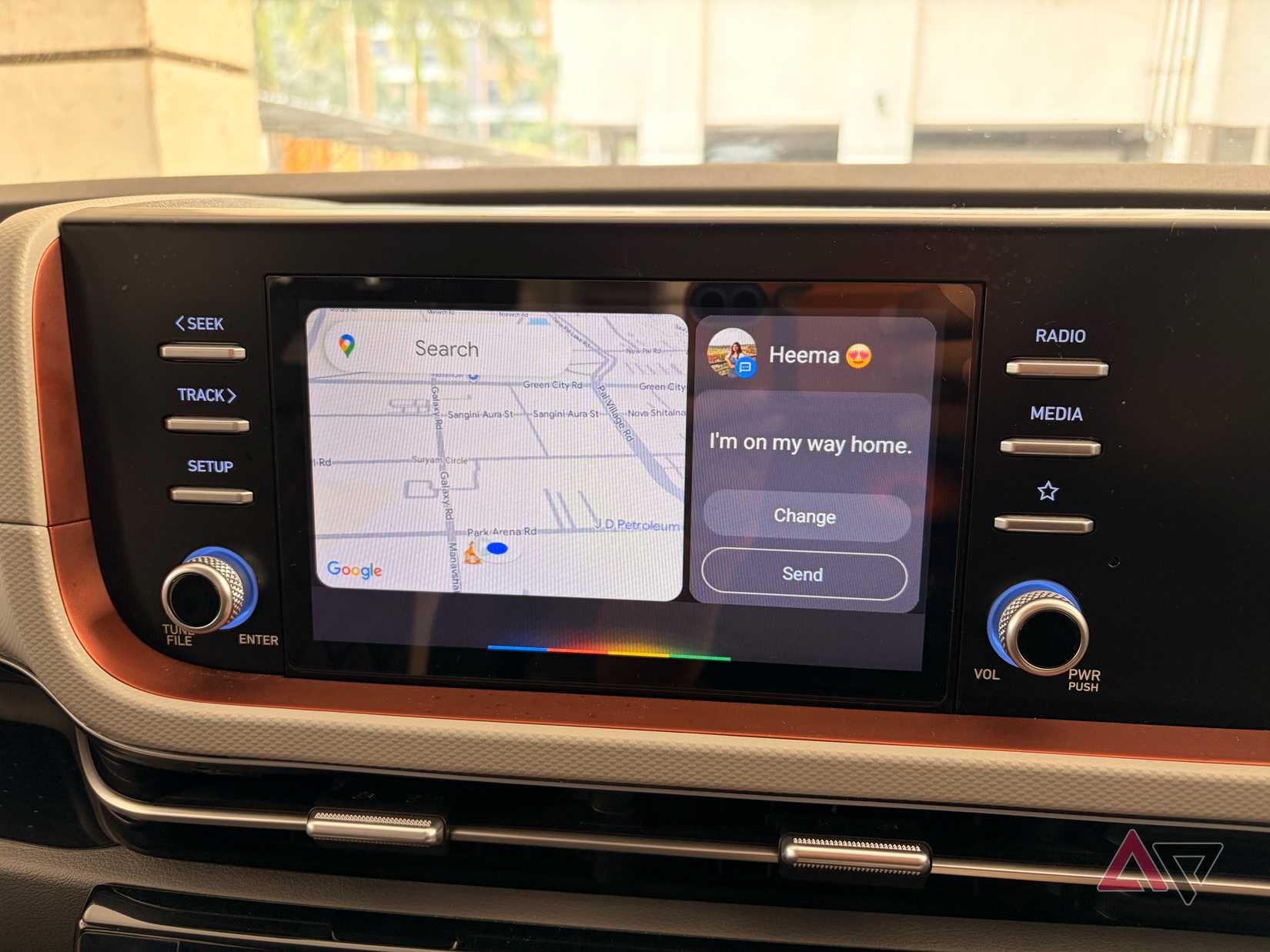
So, I created a shortcut, and for the Assistant command, I typed: Navigate home and text my wife, I’m heading back home now.
Now, with a single tap on the launcher, the system opens Google Maps, starts navigation to my Home, types the suggested message, and asks me to send it to my wife.
There is something satisfying about watching your car perform a multistep routine with a single touch.
The 30-second tweak
It’s easy to overlook the Customize Launcher menu as just a way to hide apps you don’t use, but treating it as a space for proactive shortcuts has completely changed my relationship with my car.
By moving my most frequent human connections and digital routines just one tap away, I have reclaimed my focus on the road and cut down screen time behind the wheel.
If you haven’t explored the Add a shortcut to the launcher setting yet, take a couple of minutes to do it today.
Meanwhile, check out this dedicated post to learn about the top Android Auto apps for a smooth driving experience.