

10 Microsoft Loop hacks I use to stay productive


Although it started as a Notion clone, Microsoft Loop received frequent updates to stand out in a crowded space. I took it for a spin and came away impressed. It transformed how I work, and I’m constantly amazed by Loop’s potential to boost productivity. In this post, I share the top game-changing Microsoft Loop hacks I use daily to take my productivity to the next level.
From streamlining meetings and managing projects, these aren’t just surface-level tips. I explain practical strategies that will transform your workflow and help you get more done in less time.
There has been much confusion about accessing Microsoft Loop. The new collaborative app is available for all Microsoft account holders. It’s a web app and is accessible on Windows, Mac, Linux, and Chromebooks.
Related
I tried Microsoft Loop and here’s why I’m never going back to traditional productivity tools
Goodbye old tools, hello Loop
10
Use different workspaces for specific tasks
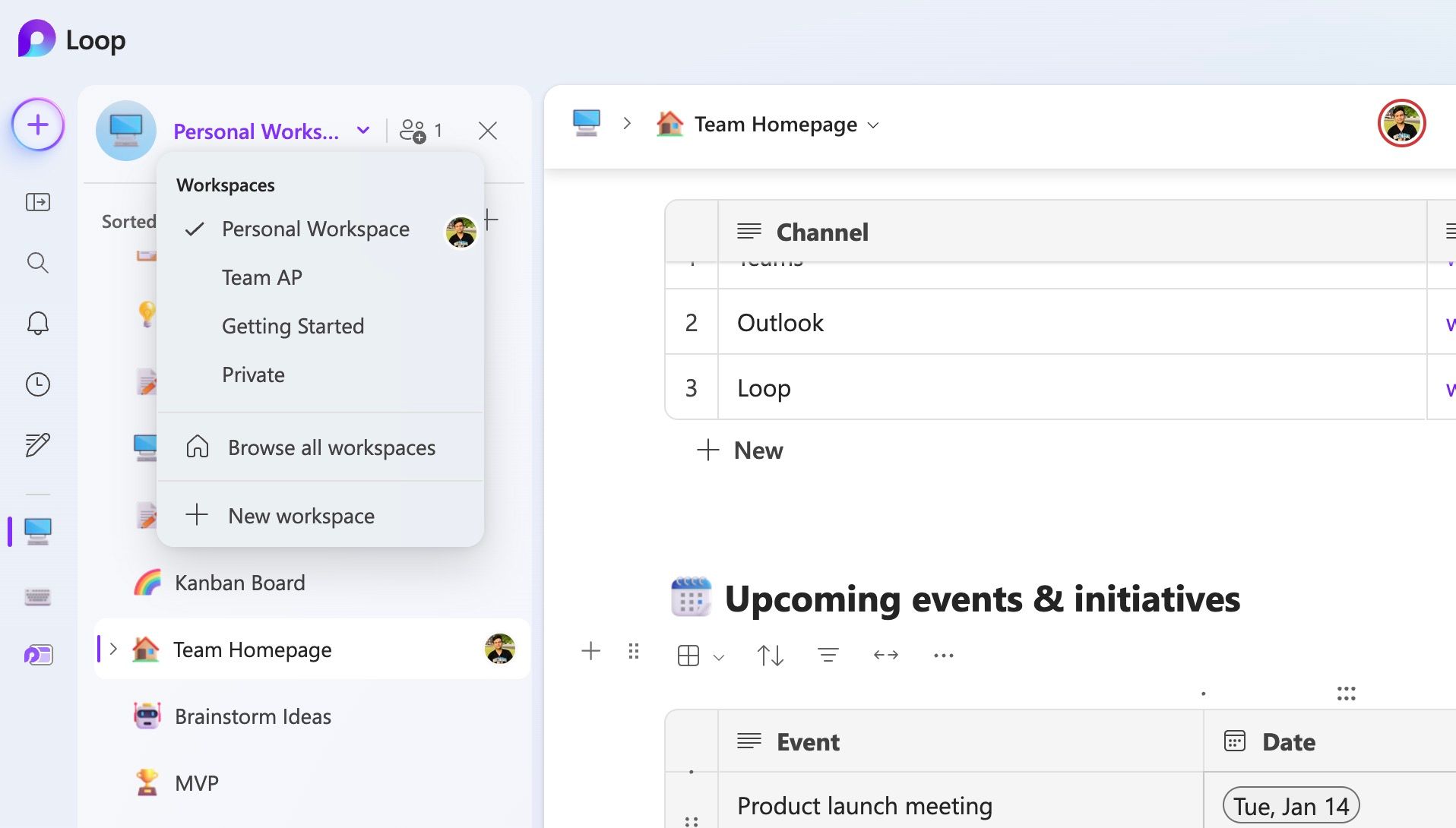
This is the first thing you must do before using Microsoft Loop for personal and work purposes. It’s crucial for keeping your data organized and preventing information overload. I have a personal workspace and workspaces for different projects and clients.
When my project database is ready with specific pages, I invite team members, clients, and colleagues to collaborate. Using a single workspace for personal and work information can make it cluttered and challenging to manage.
To create a workspace, click the + icon in the upper-left corner, assign an emoji, give it a title, and choose a cover to get started.
9
Explore the growing template collection
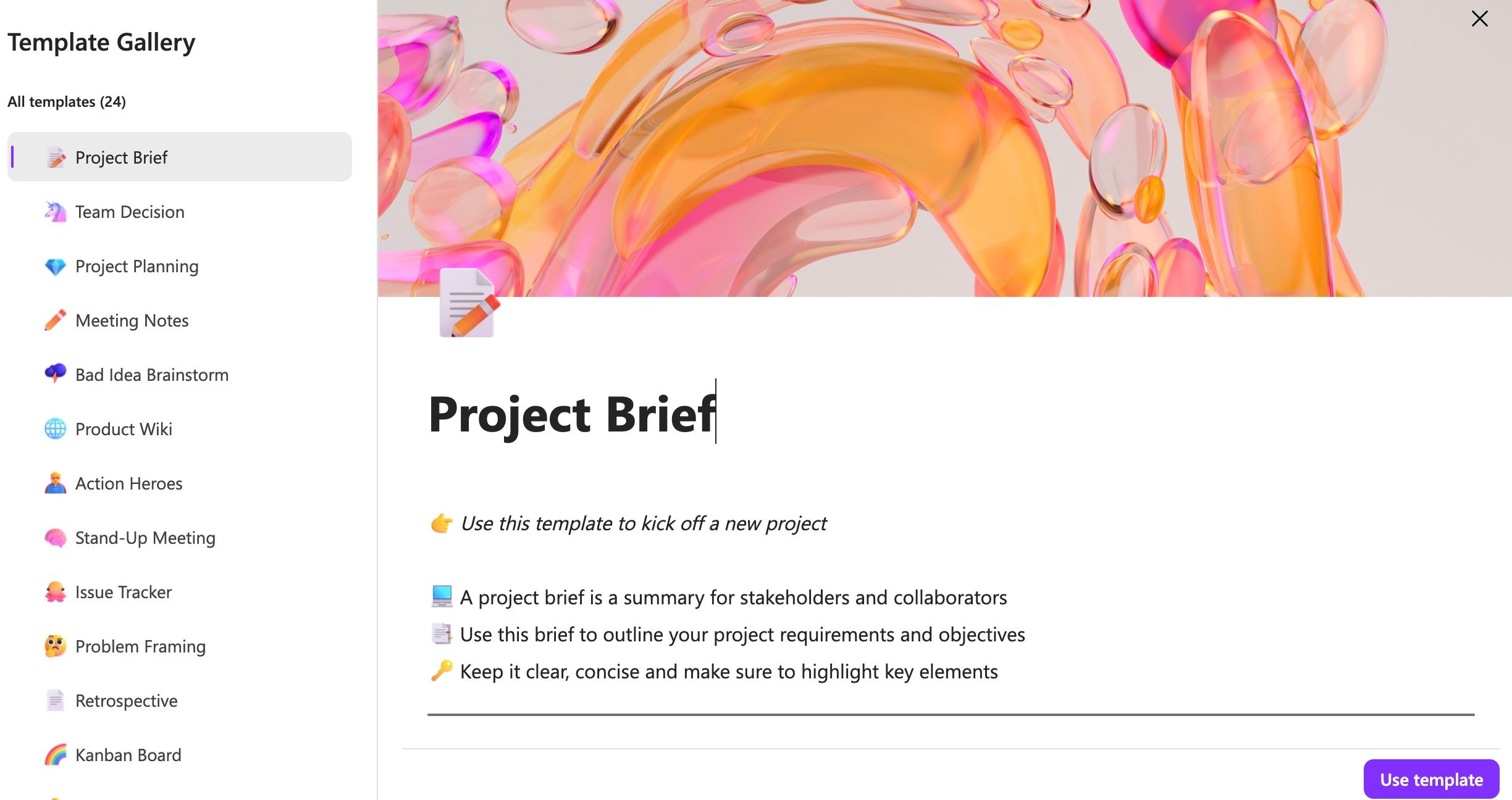
The templates gallery was slim when Microsoft announced Loop. However, the company did a decent job adding new templates. Instead of creating a new page from scratch, I glance over the templates library.
Whether you want to create a project brief, plan projects, jot down meeting notes, create an issue tracker, or develop a marketing plan, there is a suitable template to get started. It saves the time and effort of designing a page from scratch. To save a page as a template, click the overflow menu (the three dots) beside a page and select Save page as template.
8
Create a team homepage in Loop
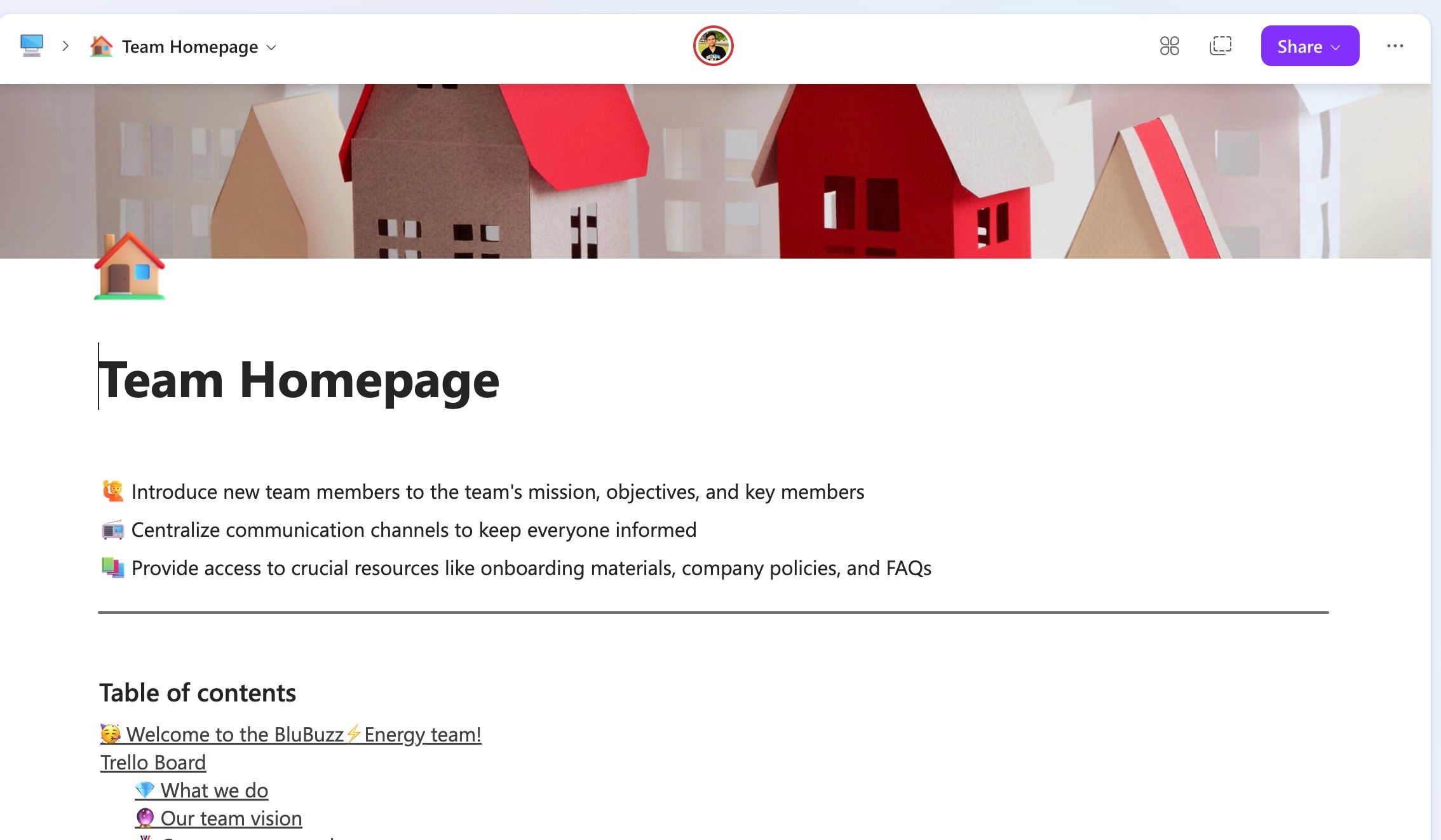
Do you often collaborate with your team members in Loop? I recommend creating a homepage to streamline communication. It acts as a central hub, making it easy for everyone to access crucial information.
Instead of searching through emails, shared drives, or various platforms, everyone can find key details about clients, projects, finances, marketing initiatives, and more in one place. You can share your team vision, current team members, onboarding members, materials, and communication channels. You can also post important announcements at the top.
7
Check recaps in Loop
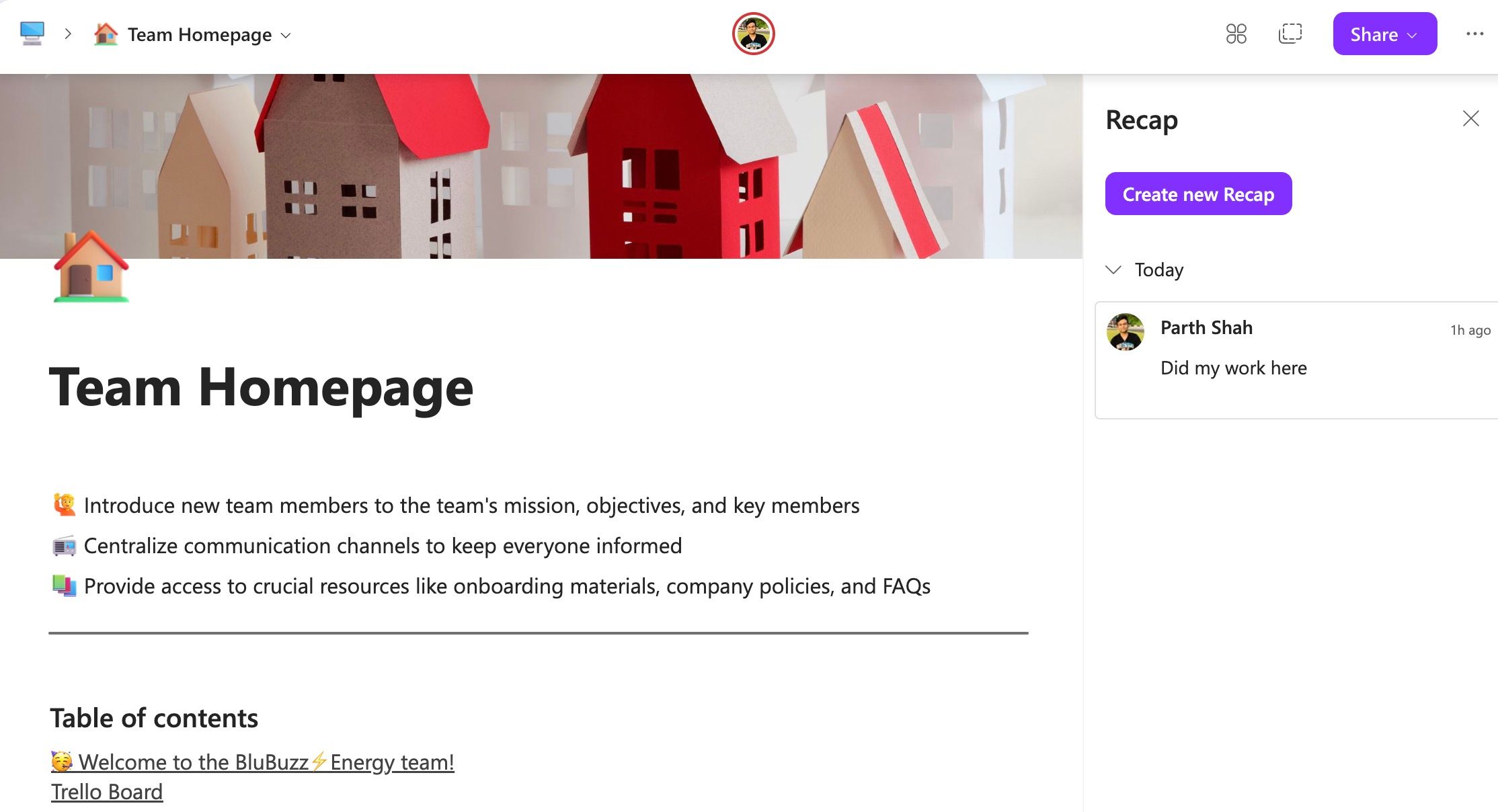
Recaps ensure everyone is on the same page and reduce miscommunication. It offers a central location to mention changes and other details you tweaked on the page. Aim for a brief and to-the-point summary and avoid unnecessary details or lengthy explanations. Click the overflow menu in the upper-right corner, select Recap, and enter a comment.
Related
7 reasons Microsoft Lists is a productivity hero you never knew you needed
Microsoft 365 has a secret weapon
6
Use the Ideas tab to jot down quick thoughts
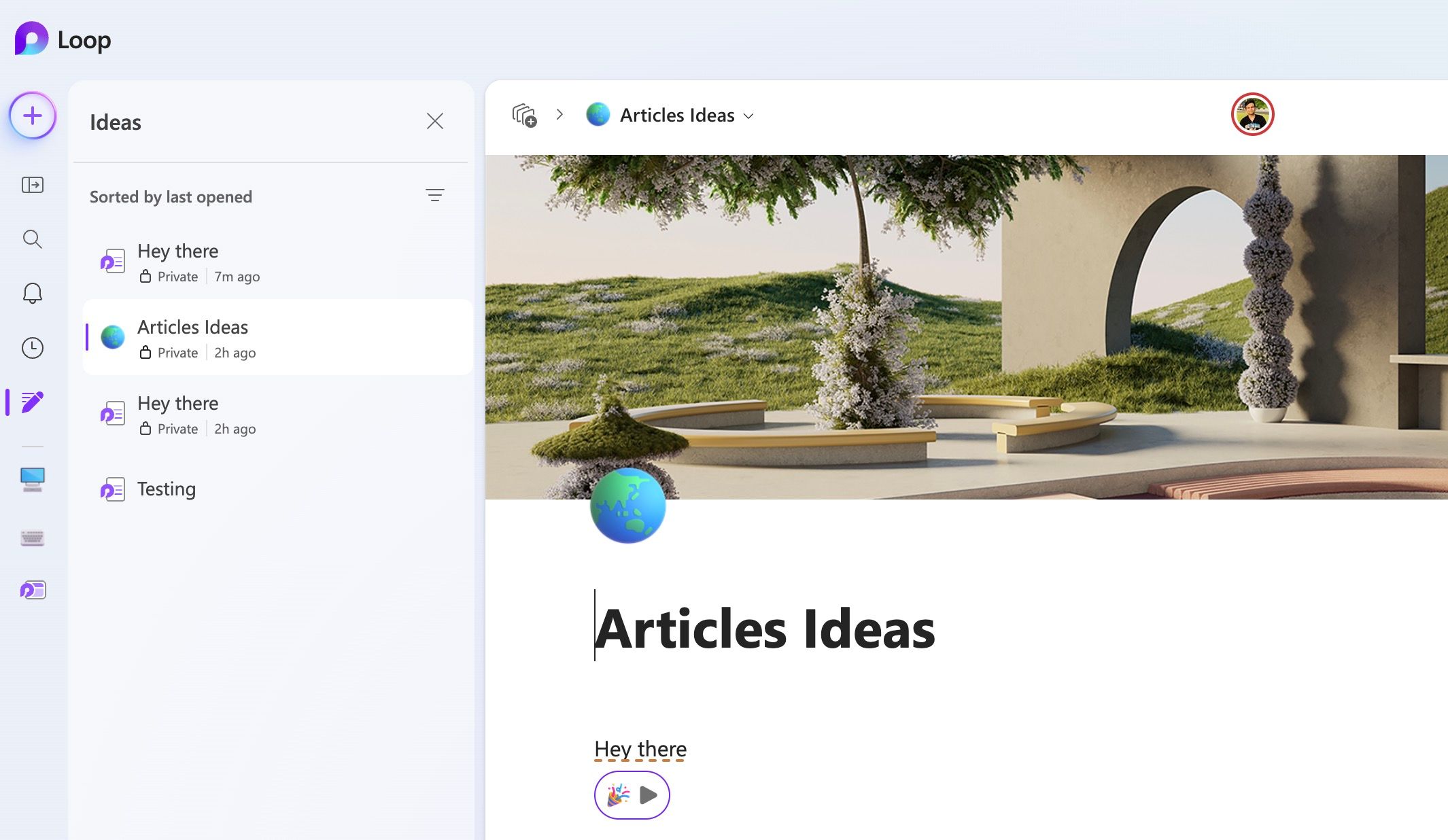
The Ideas tab in Loop is useful for capturing fleeting thoughts and quick notes. When working on a project and a new idea sparks, I jot it down in the Ideas tab. It doesn’t matter how rough or half-baked the idea is. The Ideas tab is the perfect place to capture it before it slips away.
I often use bullet points or short phrases to capture the essence of the idea. Later, I revisit these notes and flesh them out further. For example, if I come across a useful article or resource online, I paste the link into the Ideas tab with a brief note about why it’s relevant.
5
Insert Kanban boards for managing projects
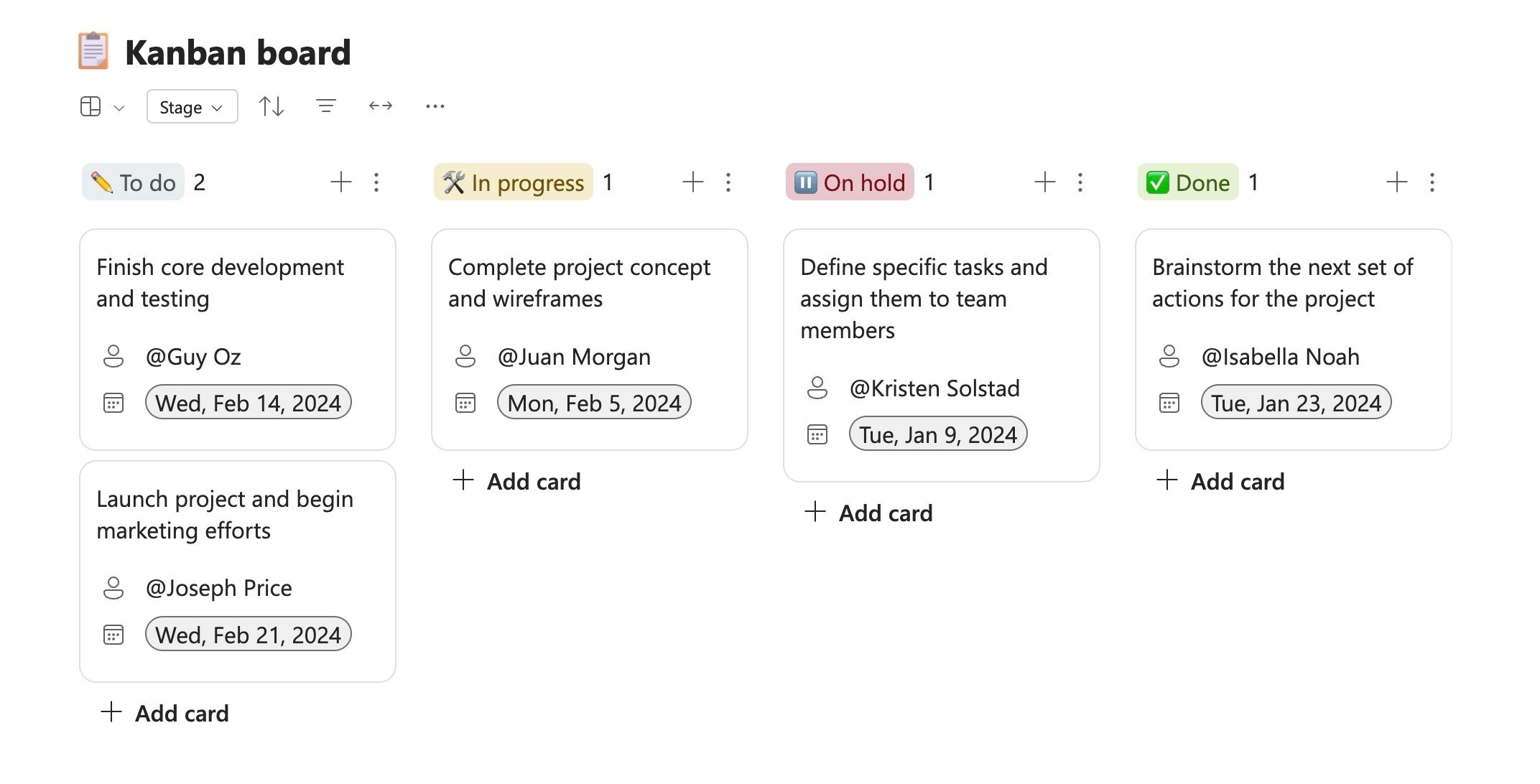
Microsoft has a Planners app to manage projects, but it’s limited to Microsoft 365 Work accounts. With Loop, you can insert a project block and create an ideal board quickly. It’s fully customizable. You can tweak columns, tasks, properties, and more.
In terms of fields, you can add a date, stage, checklist, notes, number, and person. It’s a crucial part of my workflow as I use it to manage small projects. I’m currently planning a multi-day hiking trip. This would be a chaotic mess of lists without a Kanban board.
I added To Do, In Progress, and Completed columns and then added relevant tasks like Research hiking trails, Buy hiking gear, Plan meals, Check weather forecast, and more. I added due dates for them and added checklists. I move cards around as I progress with the project.
4
Utilize Mermaid diagrams
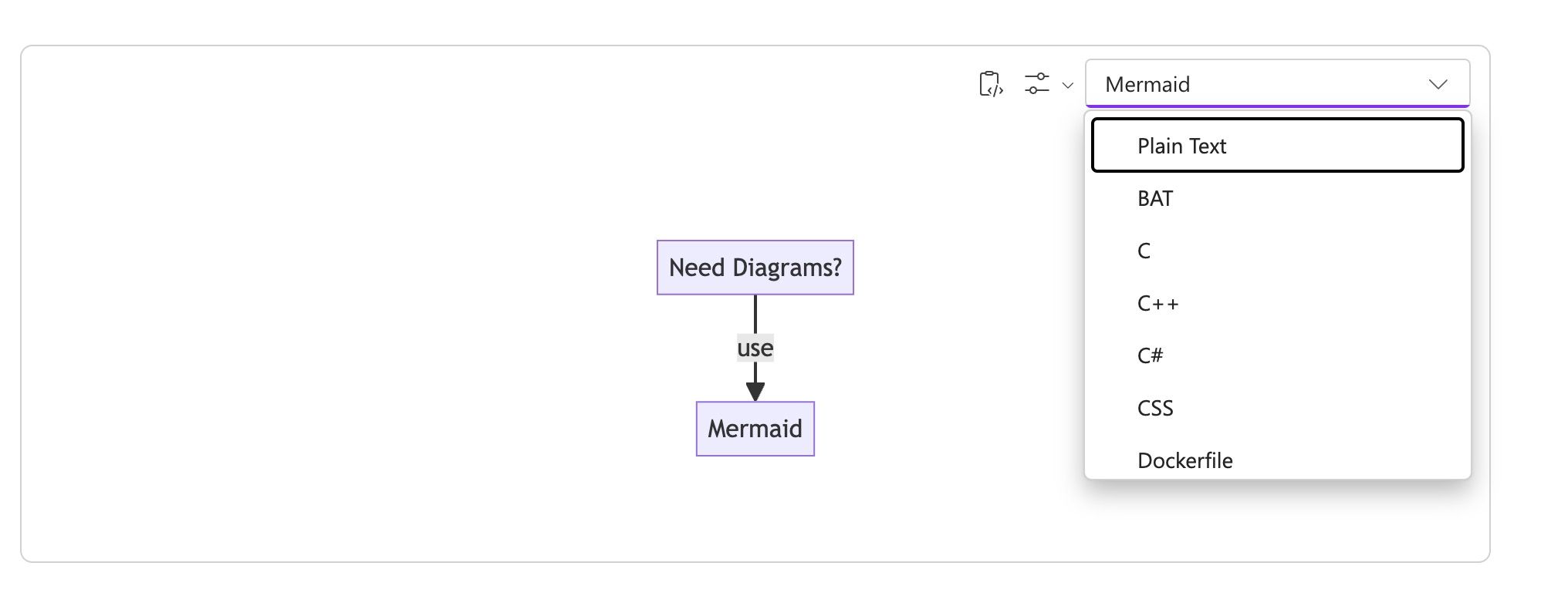
Mermaid diagrams are my go-to tool when I need to clarify my thinking or explain something to my team. System architectures and project timelines are difficult to explain with words. Mermaid diagrams allow me to translate these complex concepts into clear representations. I recently used a Mermaid diagram to map the steps in our content creation process. To use this text-based syntax and create flowcharts and sequence diagrams, type /mermaid.
3
Create rules in Loop databases
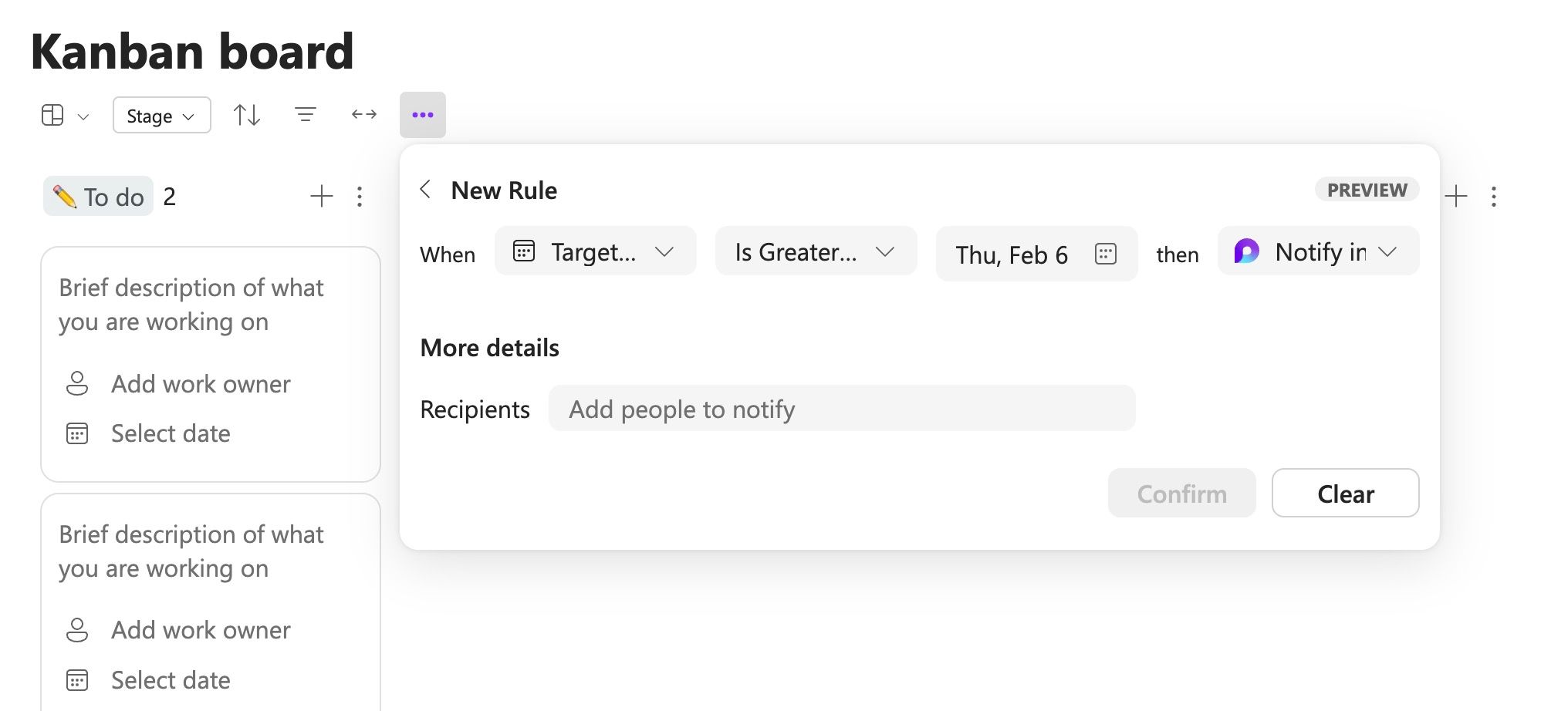
Rules play a critical role in automating my workflow. I set a rule where Loop notifies me when someone moves a task card from In Progress to the Done column. In another rule, I set up an automation where the workspace sends an alert to the editor when the task goes past the due date. To set a condition, select the overflow menu at the top of the Kanban board and select Rule. It’s still in preview, and I can’t wait to see how Microsoft improves it.
2
Explore Microsoft Loop mobile and tablet apps
Loop has native apps on iOS and Android. Set it up on your primary device to make small tweaks on the go. It’s not ideal for designing a page from scratch, but nothing beats the convenience and experience of a web app. Web apps are good enough for accessing crucial workspace data when you are away from your desk.
1
Copy and share blocks as Loop components
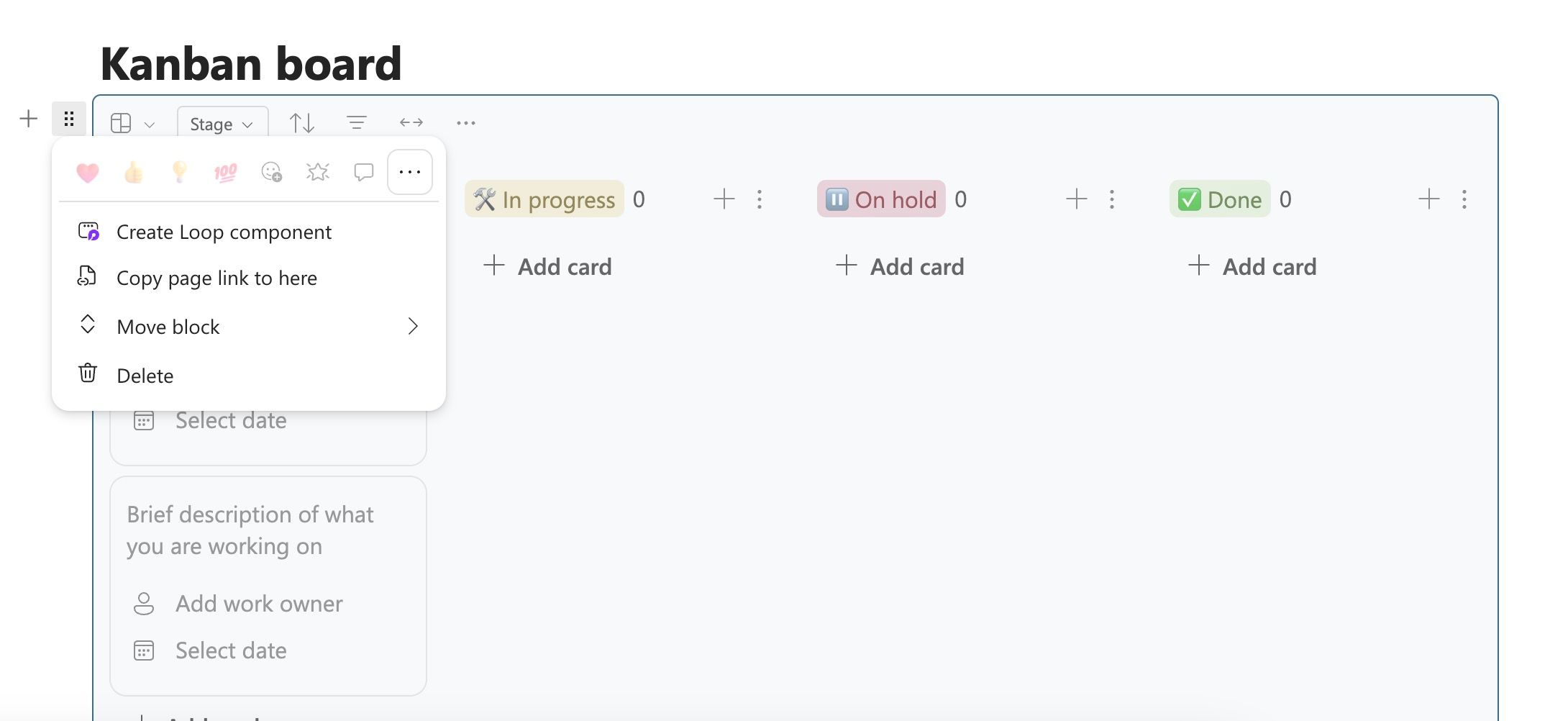
Here is where Microsoft Loop shines. You can copy a block or page as a Loop component and share it across other Microsoft apps like Outlook, Teams, OneNote, and more. When someone changes a Loop component, it reflects on all the shared components.
To create a component, click the six-dot menu beside a block and select Create Loop component. When your component is ready, share it with others on supported platforms and sync the changes. For example, I create a voting tracker in Loop on specific topics, convert it into a component, and share it in the Teams channel. I track their responses from my Loop workspaces.
Supercharge your workflow
Getting the most out of your Microsoft Loop account doesn’t require rocket science. What are you waiting for? Follow these tricks and make a difference in how you work and collaborate. While you are at it, play around with Loop features to unlock a wealth of possibilities. Microsoft Loop isn’t the only tool I use regularly. Here are the top Android apps that supercharge my productivity.





26