Realme may have fixed my biggest peeve with drag-and-drop on Android 15


I’ve used Samsung devices for years and couldn’t see myself leaving the ecosystem. One UI, while bloated, is a purposefully curated kind of excess that I enjoyed. I loved the consistent updates and unique built-in tools.
Over time, my device usage outgrew its capabilities and I needed better performance. Upgrading within the lineup became more expensive, forcing me to look elsewhere.
I eventually bought a new phone that addressed my limitations for less on a friend’s recommendation.
I’m usually scared of bloatware and AI saturation with third-party manufacturers. They’re unchecked and chaotic. Ironically, it was the so-called bloatware that won me over.
Price doesn’t always determine innovation
Buying a cheap phone from an underrated brand has its perks
Realme’s custom software layer solved one of Google’s long-standing oversights. I used to complain that Android’s native drag-and-drop feature was clunky and had no tray.
It wasn’t built for one-handed use and requires too much effort for a simple task. AI Smart Loop, on the other hand, is designed with usability as the focus.
The feature launched with the Realme GT 6 in June 2024, running Android 14 with Realme UI 5.0. However, I didn’t get access until I upgraded to Android 15 with Realme UI 6.0 on my 12+ 5G phone.
It could’ve been a regional delay or a phased rollout. Regardless, the wait was worth it.
It’s surprising that OnePlus phones don’t have this feature. It’s the main brand in the BBK group. So it’s a flex for the Realme community as it’s a sub-brand.
Yet again, it’s common for sub-brands to experiment with tailored features apart from the head.
AI Smart Loop is what drag-and-drop should’ve been
A one-handed and painless function to simplify my life
You’ll drag a screenshot, text, image, document, or video to any corner of your screen. A rotating carousel with app suggestions emerges for you to drop on supported software. The edge glows blue, so you know you’ve reached the trigger zone.
I occasionally use it to send media content to my WhatsApp status. The app launches with a prompt to choose a recipient.
I love that you can further expand functions. If you drag content and hover it over an app in Loop, you’ll get more specific actions if it allows for them.
If I want to post a picture to Instagram, I don’t need to open the app and navigate through menus. I hold it on Instagram, and Loop surfaces options like Reels or Stories.
When I release it on either option, I’m taken to the editing screen for that function. Then I make adjustments and post.
The suggestions are powered by artificial intelligence and based on context. Your most-used apps influence how they appear. If you frequently forward content on social media or paste content into your notes, those apps are likely to show up first.
However, you’re not stuck with them. Go to Settings > Accessibility & convenience > AI Smart Loop to manage the carousel. You’re allowed to add up to five apps and expand them.
Video editing is also swifter. Refining a clip usually means opening the Spring editor, digging through my gallery, and importing the file. Alternatively, I could send the video to the editor from my gallery with the share button.
Instead, I long-press the video when I spot it and toss it into the app. I’m able to work on my video immediately.
Copy and paste gets a whole new meaning where you can highlight a chunk of text and move it with one hand to your preferred app. It’s not mind-blowing until you remember how Google’s version works.
Drag-and-drop requires two fingers unless you use split-screen mode. It’s better if you use a foldable phone or one with a large screen to support multitasking comfortably. Otherwise, you’ll fumble and lose the copied content halfway.
Activation of Smart Loop brings up its Terms of Use. All it says is that the system needs access to your apps and information to make suggestions.
You’re also responsible for whatever you drag and share. Be mindful of moving copyrighted or sensitive content between apps to avoid legal issues.
Advanced copy and paste at my service
Keep those copied texts for 30 uninterrupted days
Android’s Gboard provides a clipboard for you to temporarily hold text. It holds only five recently copied items. They vanish after a while, but they’ll stay longer if you pin them.
Whether that’s a good thing or an inconvenience depends on your workflow and personal preference.
Most people dislike the idea of their phone keeping records of their activity. I draft quick thoughts and scraps of ideas frequently. I don’t always have time to organize them.
I also don’t want them to disappear so fast. My phone offers an extra solution that I don’t mind using.
App Dock came with Android 14 and is available for OnePlus users. It’s another feature that exists in the Smart Sidebar.
It stores copied content much longer, even when I reboot my device. They stay up to 30 days, and I can clear them anytime. The feature is optional, and you’ll activate it in settings.
Still, there’s a catch in performance. Dock pops out of the upper-right side of the screen, while Loop lives all around. The system defaults to opening Loop even if you are trying to use Dock.
It gets tricky. Dock is tied to the Smart Sidebar, but you can turn off the former and keep the latter.
You can also turn off Loop and keep your Sidebar with the Dock turned on. However, you can’t turn off the Sidebar without affecting Loop because they’re connected.
It’s not confusing after you try it. My workaround is simple. Dock appears as a suggestion in Loop because I use it regularly. Hence, I move the content to it as one of the drop targets.
Intelligence means using the right tools
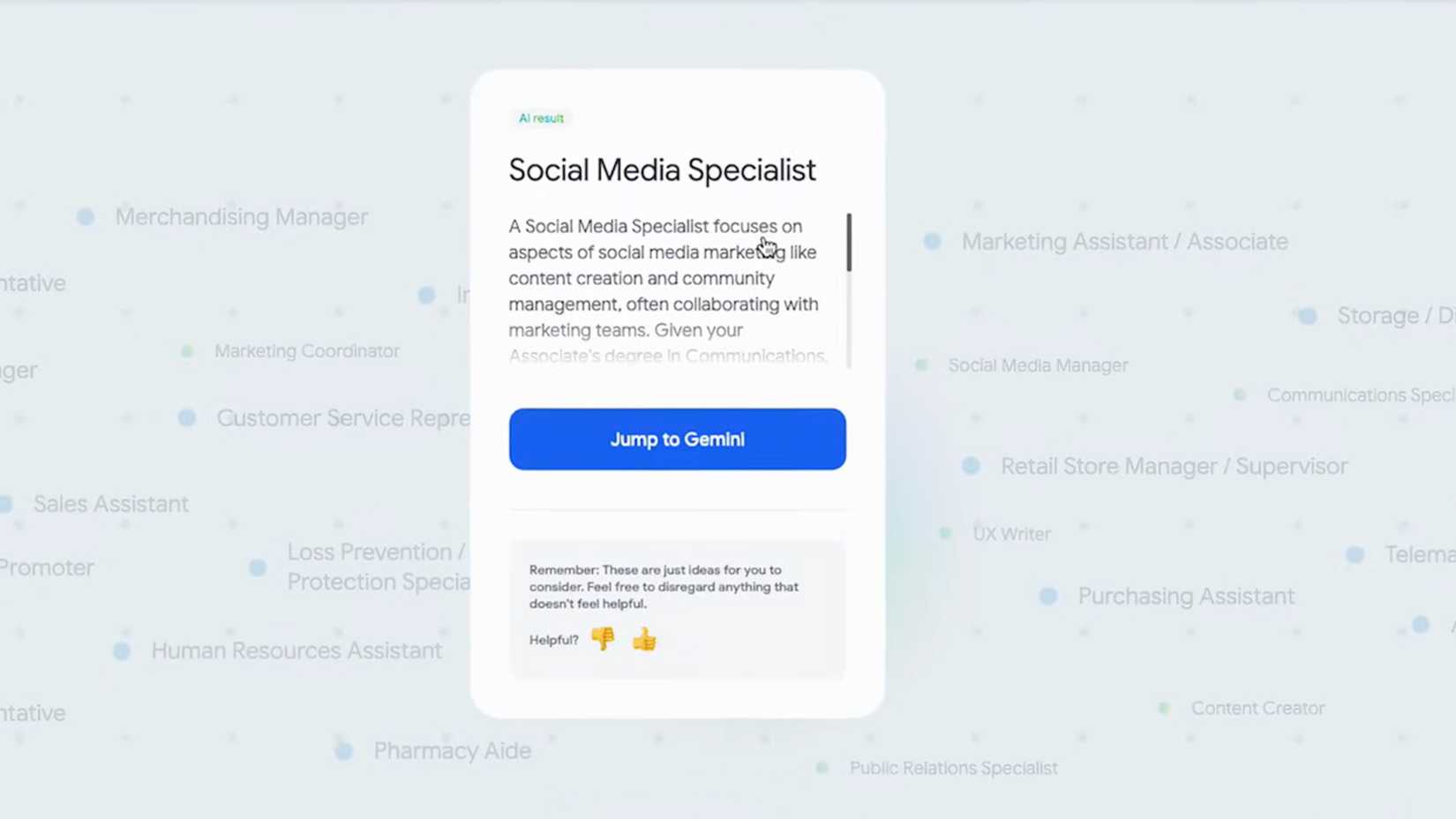
AI can improve how you use your phone when it’s well executed. You may not have Loop or Dock, but there may be other unique types buried in your settings.
Some are more flashy than others. Realme’s functionalities are examples, while brands like Nothing offer subtle alternatives.
In particular, Essential Space and Search solve real problems without overwhelming your experience.
Take time to explore your device and look for the features that work with you. You’d be surprised at how much your phone can do.